
Environments
An environment belongs to a customer and moves through a clear lifecycle — Development, Staging, QA, Pre-production, Production. Each one carries its provider, region, cloud account ID and deployment status, all in one list.
Registering an environment
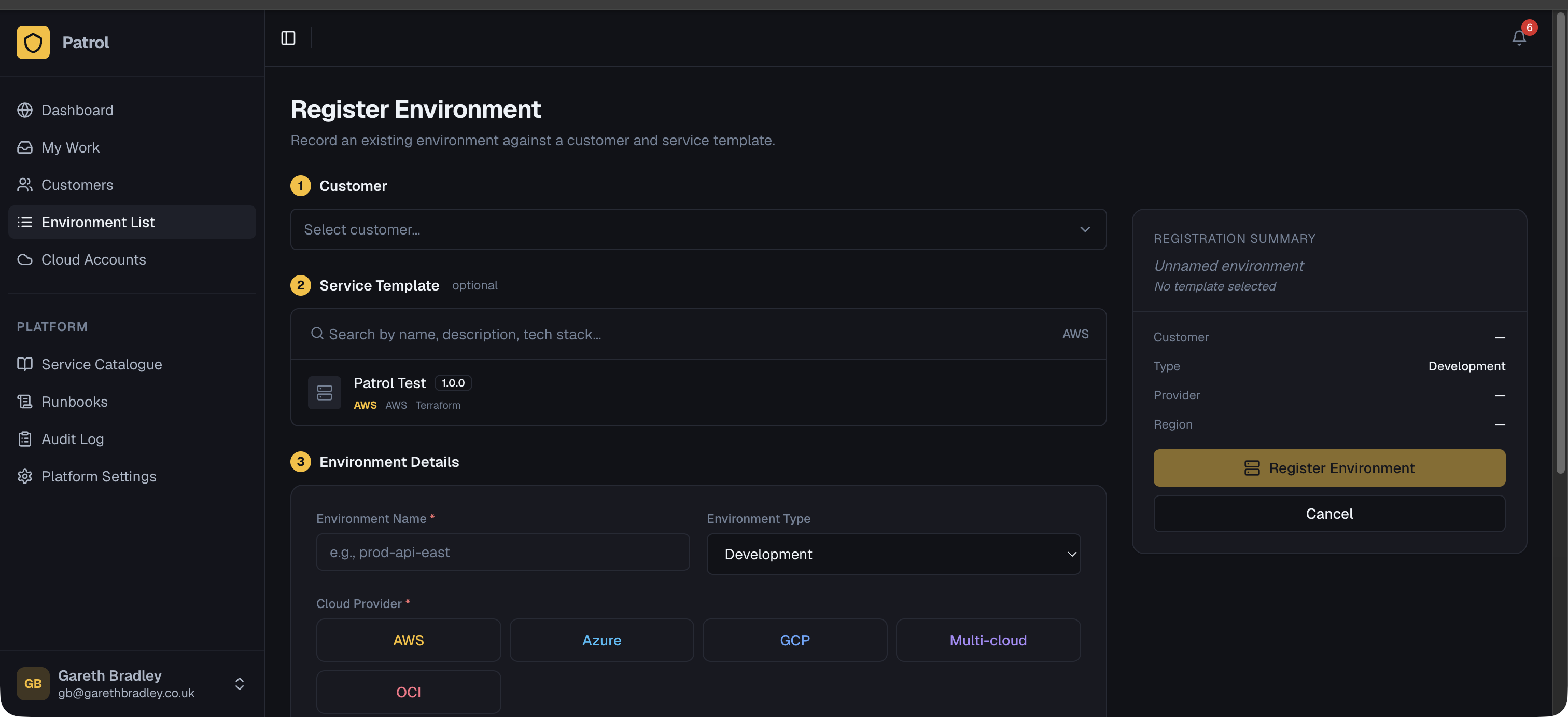
Section titled “Registering an environment”From Environments → Register Environment:
- Pick a customer — environments belong to a customer.
- Pick a service template — only
activetemplates are shown. Selecting a template auto-fills the provider and clears the region (since available regions depend on the provider). - Fill in environment name, type (Development, Staging, QA, Pre-production, Production), region, cloud account ID, and any notes / target date.
- Parameter values — fill in the values for the template’s parameter schema (instance sizes, versions, secret references, etc.) using the on-screen form.
- Register — this creates the environment record with a snapshot of the template’s deployment config and your parameter values.
Deploying
Section titled “Deploying”Once registered, open the environment to find the Deployments panel:
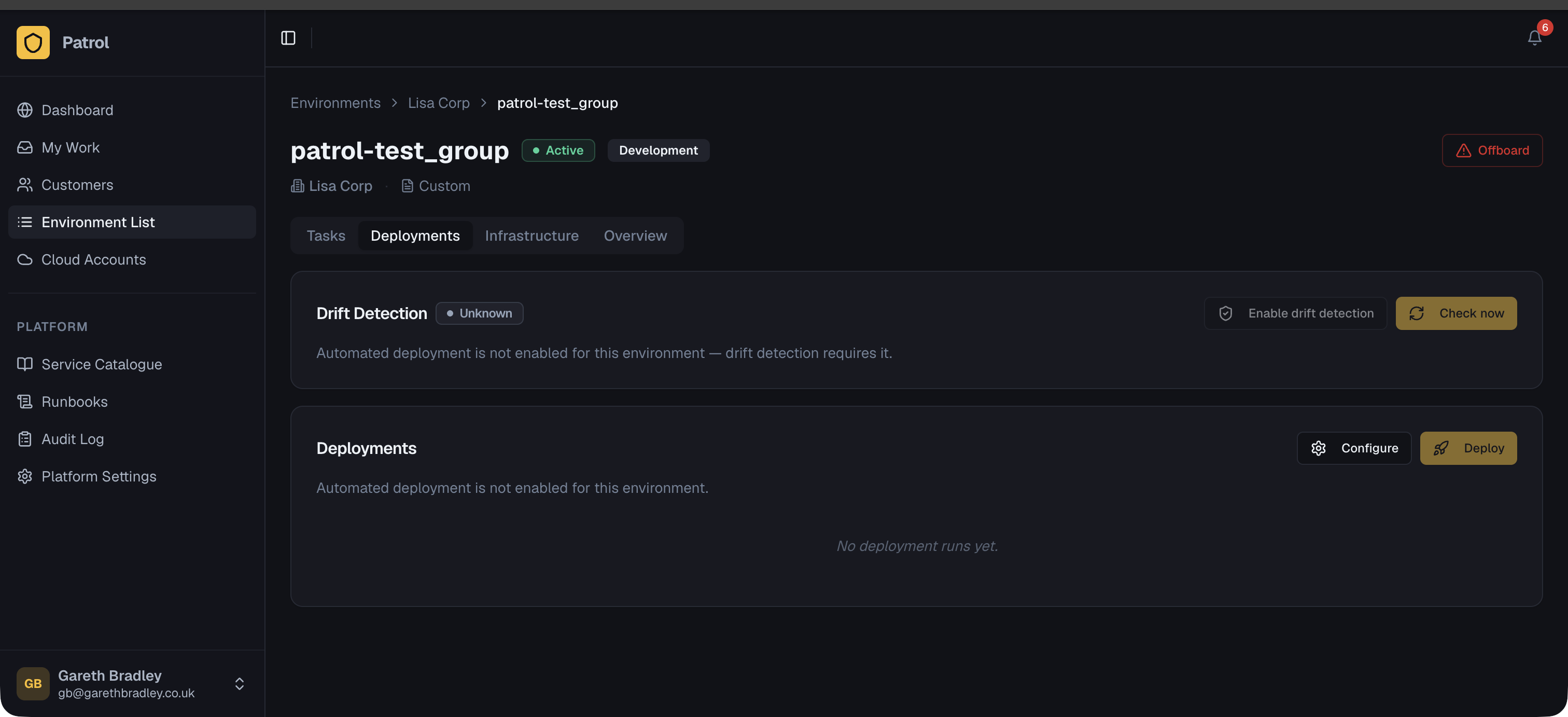
- Deploy kicks off a run — Patrol creates a deployment run, resolves any secret references, and dispatches to the configured adapter (webhook, GitHub Actions, GitLab CI, Terraform Cloud, Ansible AWX, Azure DevOps, or Vagrant).
- Synchronous adapters report success/failure immediately; asynchronous ones (e.g. GitHub Actions) complete later via a callback, and the run status updates automatically.
- Run history, status, and logs/links are all visible from the same panel, along with a Configure sheet to adjust deployment trigger settings or parameter values without editing the template.
Next steps
Section titled “Next steps”- Cloud Accounts — scan an environment’s cloud account for drift
- Drift Detection — how Patrol compares live infrastructure against an accepted baseline