
Connecting an Azure account
To scan an Azure subscription, Patrol needs a Service Principal with the Reader role. This gives it read-only access to enumerate resources — it cannot modify anything.
Prerequisites
Section titled “Prerequisites”- Azure CLI installed and authenticated (
az login) with an account that has permissions to create Service Principals and assign roles in the target subscription - Patrol CLI installed:
npm install -g @patrol/cli
1. Register the cloud account in Patrol
Section titled “1. Register the cloud account in Patrol”From Cloud Accounts → Add Cloud Account:
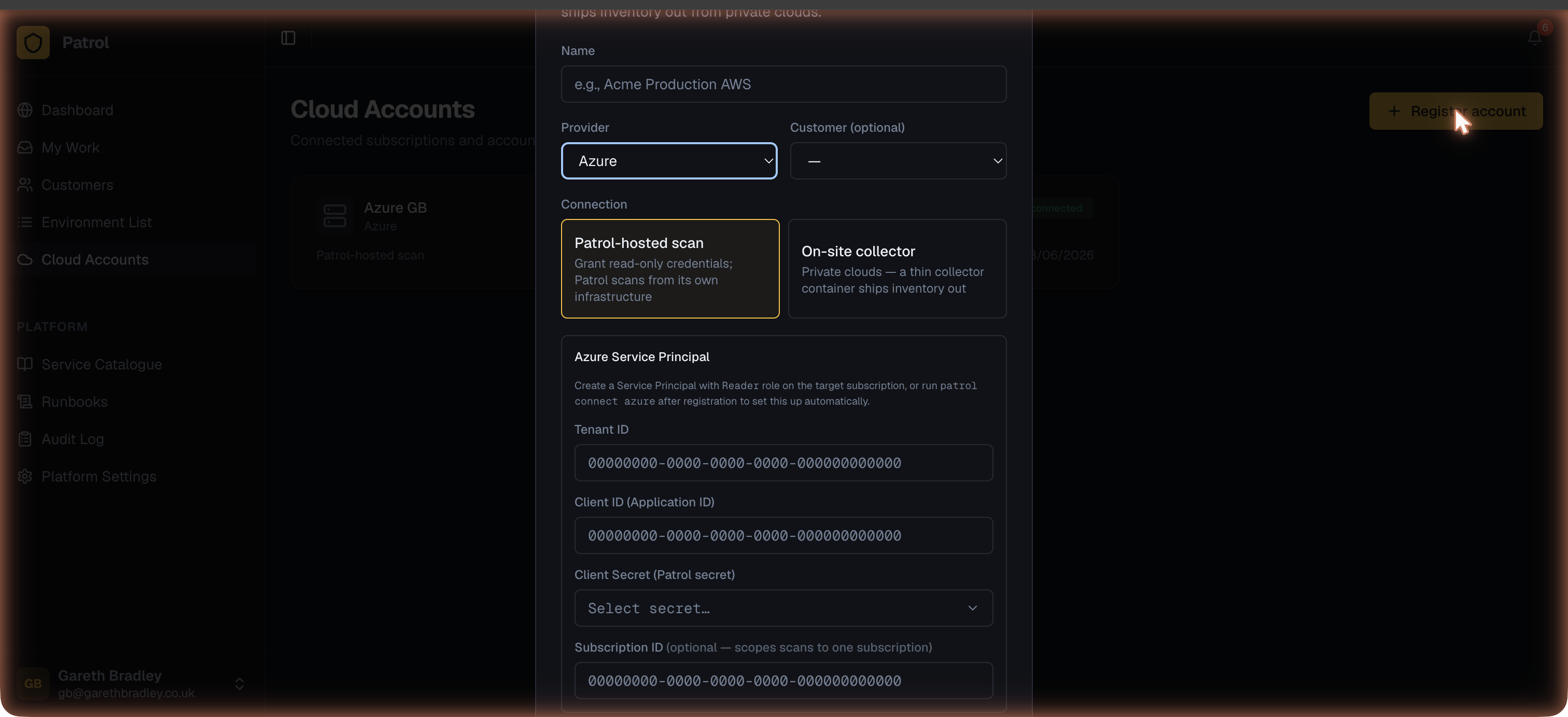
- Give the account a name (e.g. the subscription name).
- Set Provider to Azure.
- Optionally link it to a customer.
- Set Connection mode to Patrol-hosted scanning (pull).
- Leave the credential fields blank for now — click Register.
2. Set up the Service Principal
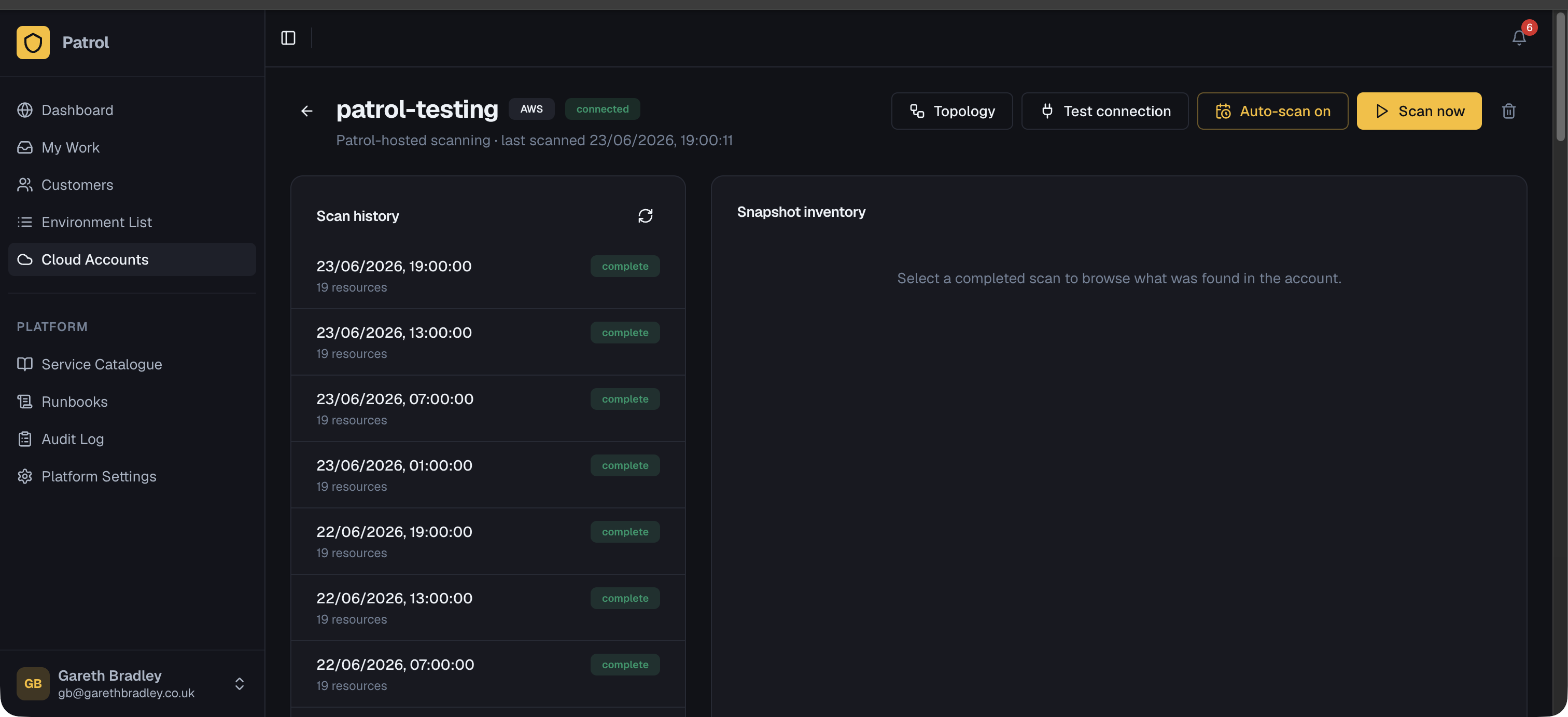
Section titled “2. Set up the Service Principal”On the cloud account detail page, find the “Set up cloud access” card and click Generate setup command. This produces a one-time token valid for 15 minutes.
Run the command on a machine with the Azure CLI authenticated against the target subscription:
patrol connect azure --token <token>The CLI will:
- Detect your current Azure subscription (or use
--subscription <id>to specify one). - Check if a
PatrolReadOnlyService Principal already exists — creating it if not, or adding a new client secret if it does. - Assign the Reader role on the subscription.
- Save the credentials directly to Patrol.
Once complete, click Test connection on the detail page to verify.
Manual setup (alternative)
Section titled “Manual setup (alternative)”If you’d prefer not to use the CLI, the setup screen also provides a Manual tab with the equivalent az commands:
# Create the Service Principal with Reader roleaz ad sp create-for-rbac \ --name "PatrolReadOnly" \ --role "Reader" \ --scopes "/subscriptions/<subscription-id>"This outputs appId, password, and tenant — enter these into the Client ID, Client Secret, and Tenant ID fields on the cloud account detail page along with the Subscription ID.
3. Scan the account
Section titled “3. Scan the account”Once connected:
- Click Scan now for an immediate inventory scan.
- Toggle Auto-scan to scan every 6 hours automatically.
Each scan produces a snapshot visible in Scan history. See Topology to explore how resources relate to each other, and Drift Detection to set up continuous change monitoring.
Troubleshooting
Section titled “Troubleshooting”“Could not detect Azure subscription” — run az login and ensure you’re authenticated to the correct tenant. Use az account show to confirm the active subscription.
“Failed to create Service Principal” — your Azure account needs the Application Administrator (or higher) role in Azure AD, plus Owner or User Access Administrator on the subscription to assign roles.
Setup token expired — tokens are valid for 15 minutes. Click Generate setup command again to get a fresh one.
Connection test fails after setup — wait 30–60 seconds; Service Principals can take a moment to propagate. If it still fails, check that the subscription ID on the detail page matches the one the CLI connected.