
User management
User management lives under Settings → People and Settings → Teams.
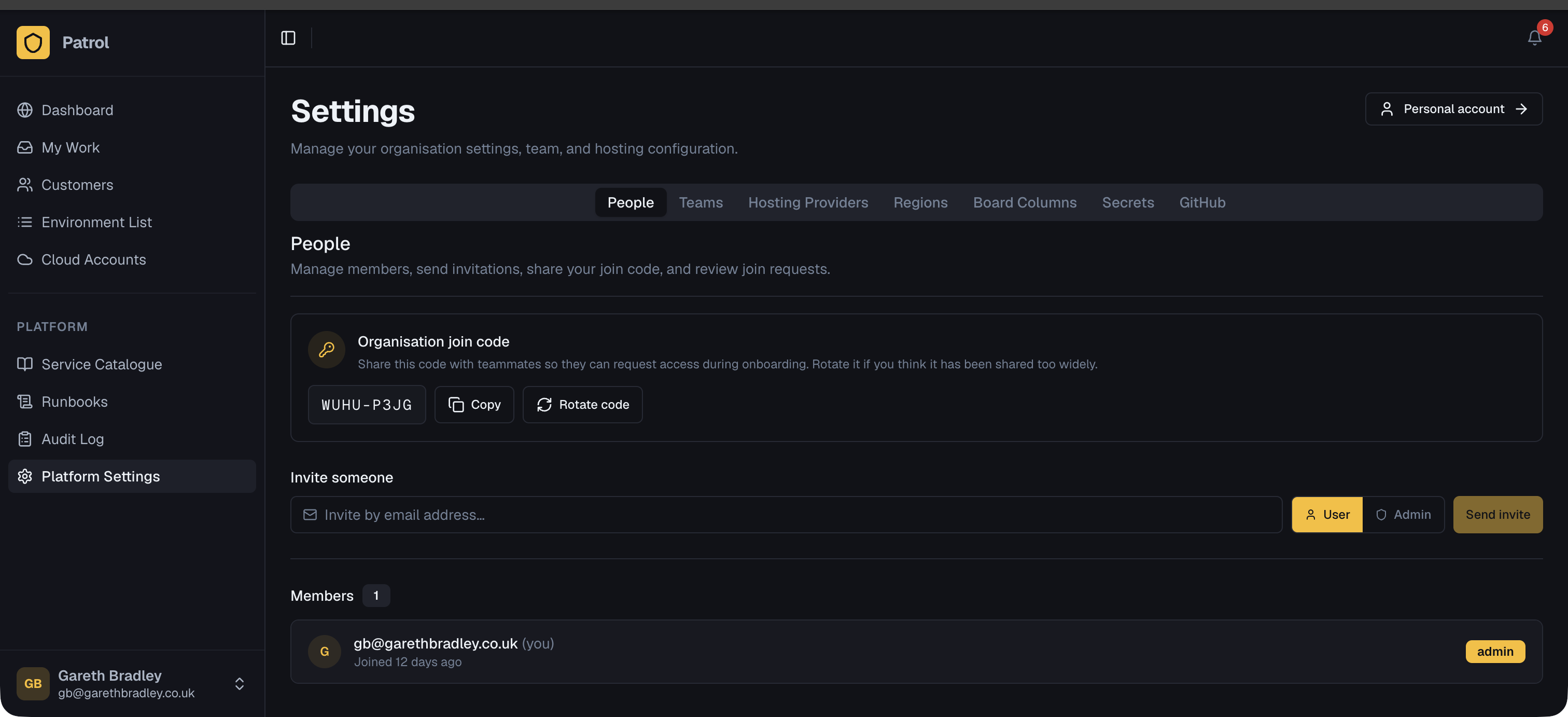
Inviting people
Section titled “Inviting people”Via email invite
Section titled “Via email invite”From Settings → People → Invite, enter one or more email addresses. Patrol sends each person an invitation email with a link that drops them directly into your organisation after they complete signup — no join request needed.
Via join code
Section titled “Via join code”From Settings → People, copy your organisation’s join code and share it (e.g. in Slack or email). When a new user signs up, they can enter the join code to submit a join request. Requests appear in the Pending requests section for an admin to approve or decline.
Managing people
Section titled “Managing people”The People list shows everyone in your organisation with their name, email, role, and team memberships. From here you can:
- Change a user’s role (admin or member)
- Remove them from the organisation
Teams group people together so they can be assigned QA tasks and environment work as a unit rather than individually.
From Settings → Teams → New Team:
- Give the team a name and optional description.
- Add members from the people in your organisation.
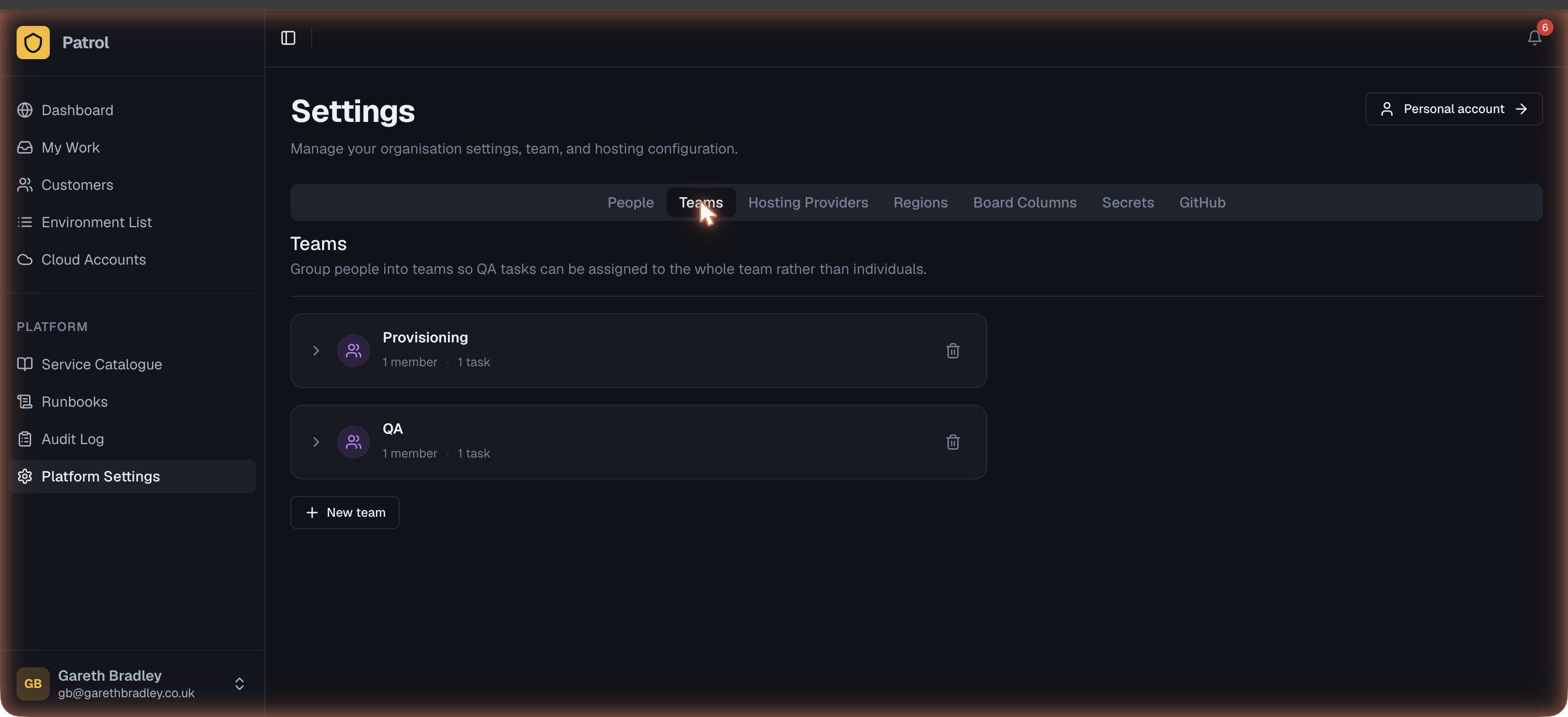
Teams appear as assignment targets in QA checklists and task boards. When a task is assigned to a team, any member of that team can pick it up.
Passkeys
Section titled “Passkeys”Patrol supports passkeys (WebAuthn) as an alternative to password-based login. Users can register a passkey from Account → Security. Subsequent logins can then authenticate with the passkey instead of a password, using the device’s built-in biometric or PIN.
Passkeys are per-user and managed by the individual user — not by org admins.