
Cloud accounts overview
A cloud account is a connection between Patrol and a customer’s infrastructure — an AWS account, Azure subscription, GCP project, or private cloud. Once connected, Patrol can scan it for resources, build a topology view, and alert you to unexplained changes.
Cloud account scanning is independent of whether Patrol deployed the infrastructure — you can connect any account, even one managed entirely outside Patrol.
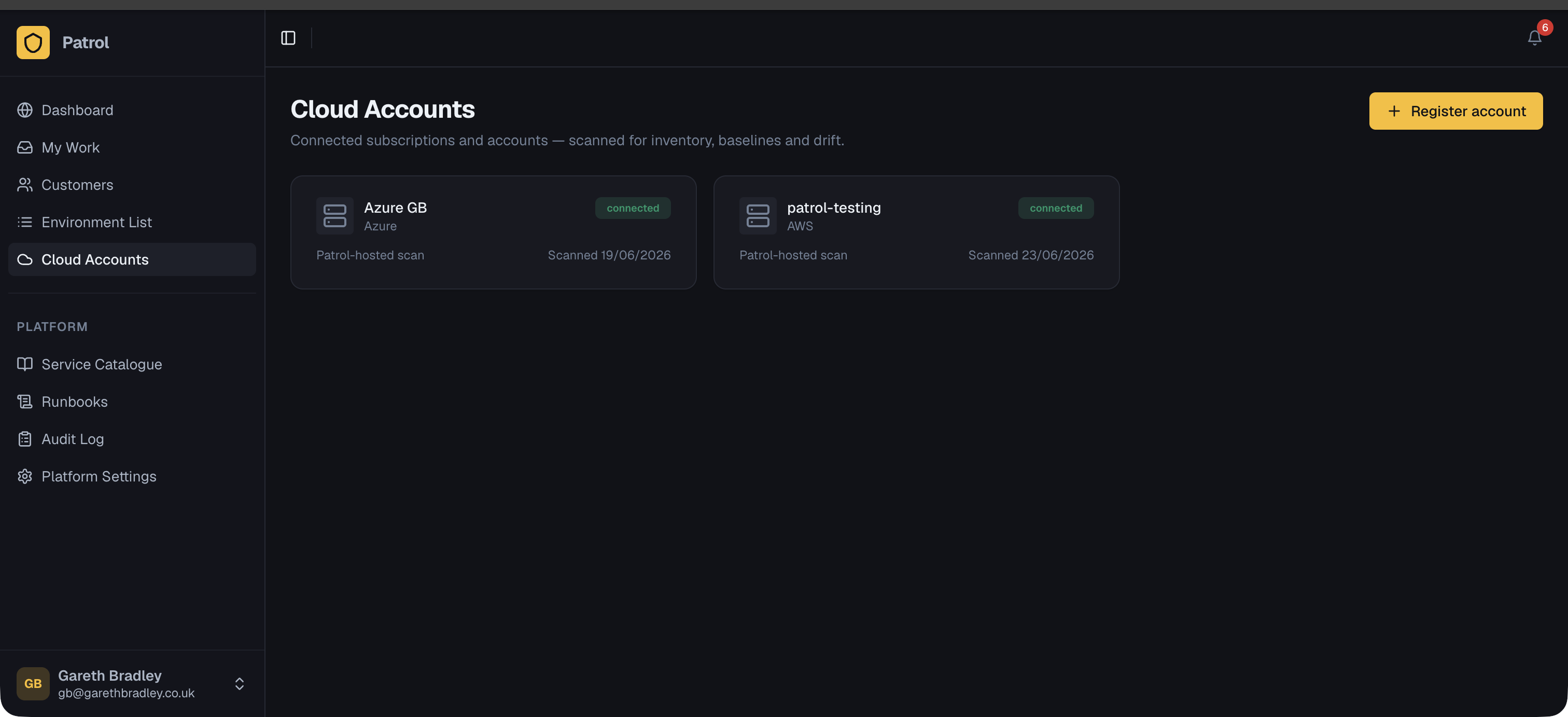
Adding a cloud account
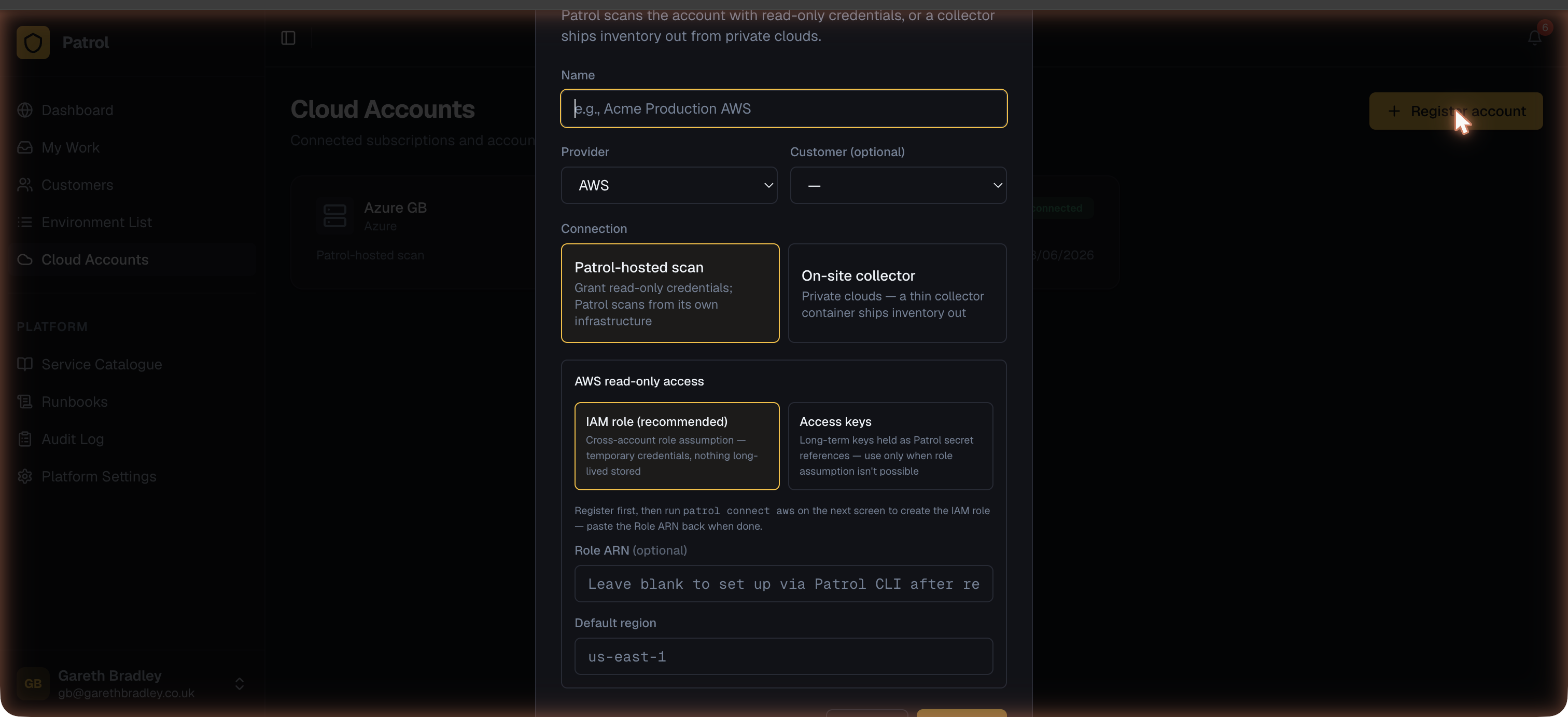
Section titled “Adding a cloud account”From Cloud Accounts → Add Cloud Account, fill in:
- Name — a human-readable label (e.g. the AWS account alias or Azure subscription name)
- Provider — AWS, Azure, Google Cloud, OpenStack, VMware, or Other/Custom
- Customer — optionally link this account to a customer
- Connection mode — how Patrol reaches the account (see below)
Connection modes
Section titled “Connection modes”Patrol-hosted scanning (pull)
Section titled “Patrol-hosted scanning (pull)”Patrol assumes a read-only role or service principal in the customer’s account and scans it directly. This is the recommended mode for public cloud providers (AWS, Azure, GCP).
See the provider-specific guides for setup steps:
On-site collector
Section titled “On-site collector”For private or isolated clouds (OpenStack, VMware) where Patrol can’t reach the account directly, a lightweight collector process runs inside the customer’s network and pushes scan results to Patrol.
Collector support is currently being built out.
Scanning
Section titled “Scanning”Once an account is connected:
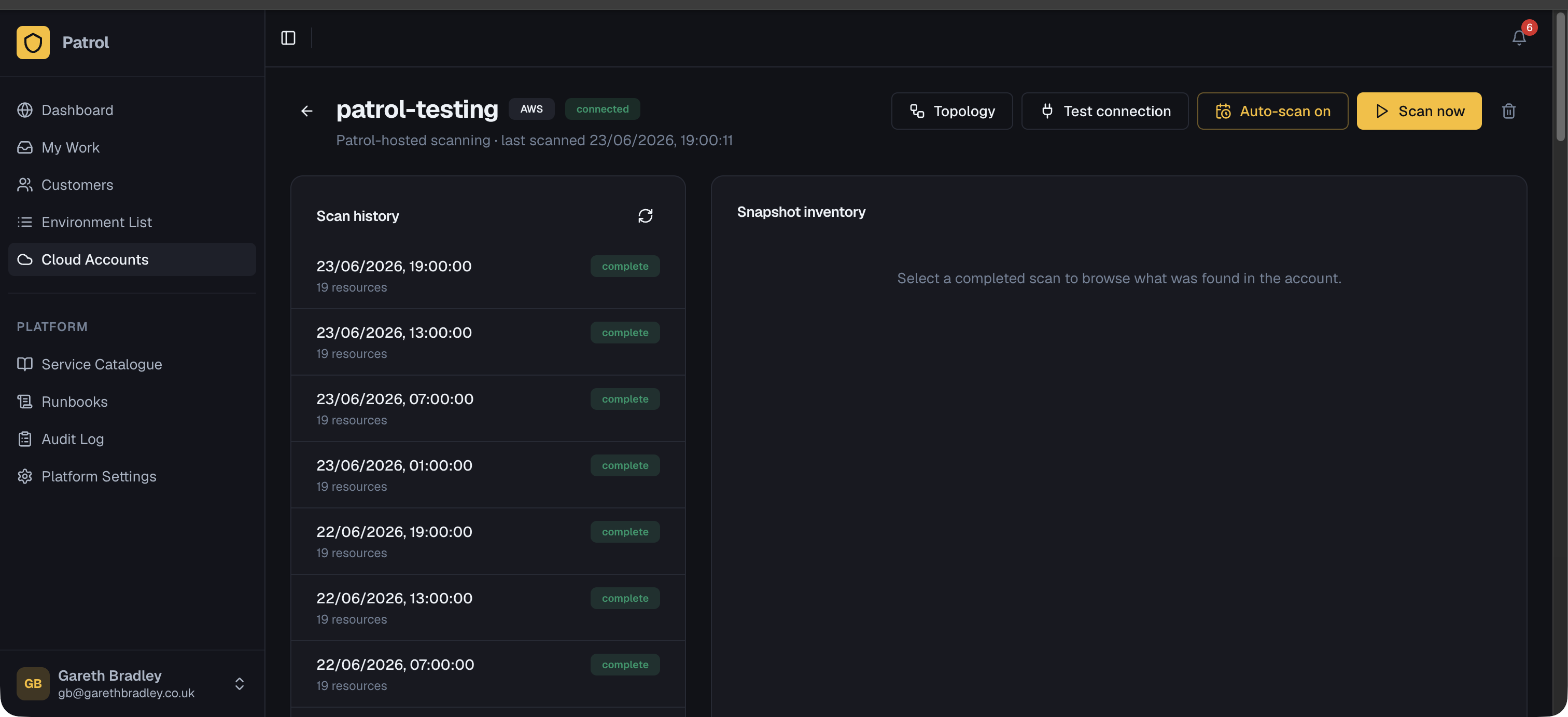
- Click Scan now on the account detail page to run an inventory scan immediately.
- Toggle Auto-scan to run a scan every 6 hours automatically.
Each scan produces a snapshot — a point-in-time inventory of the account’s resources, grouped by category (compute, network, IAM, security, storage). Snapshots are visible in Scan history.
Next steps
Section titled “Next steps”- Drift Detection — compare snapshots against an accepted baseline and track unexplained changes
- Topology — explore how resources are connected within a snapshot