
Connecting an AWS account
To scan an AWS account, Patrol assumes a cross-account IAM role with read-only permissions. This is the recommended approach — no long-lived access keys, and the role’s trust policy is scoped to Patrol’s own AWS account plus a unique external ID for each connected account (protecting against the confused deputy problem).
Prerequisites
Section titled “Prerequisites”- AWS CLI configured with credentials for the target account (admin or IAM-admin permissions needed to create roles and attach policies)
- Patrol CLI installed:
npm install -g @patrol/cli
1. Register the cloud account in Patrol
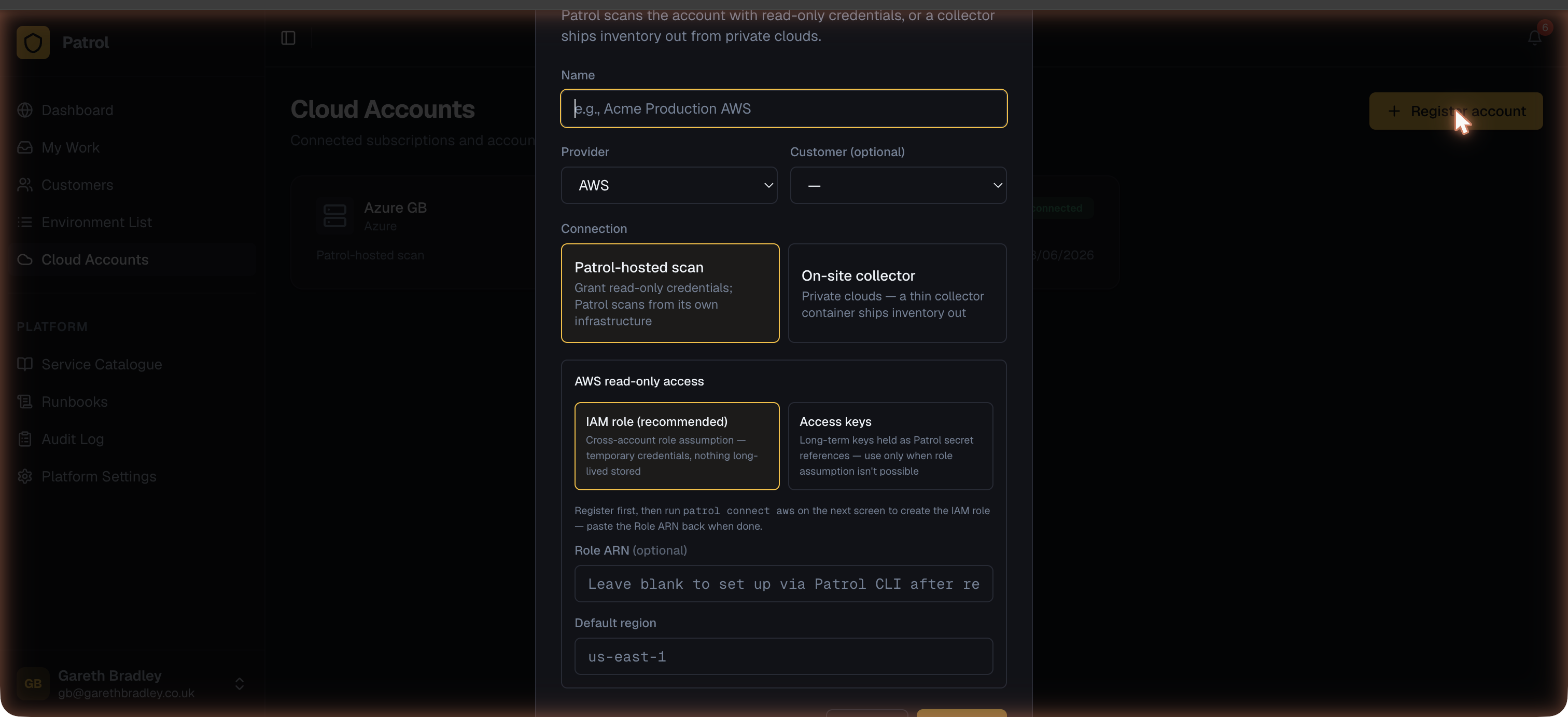
Section titled “1. Register the cloud account in Patrol”From Cloud Accounts → Add Cloud Account:
- Give the account a name.
- Set Provider to AWS.
- Optionally link it to a customer.
- Set Connection mode to Patrol-hosted scanning (pull).
- Choose Cross-account IAM role as the authentication method. Leave the Role ARN blank for now.
- Click Register.
2. Create the IAM role
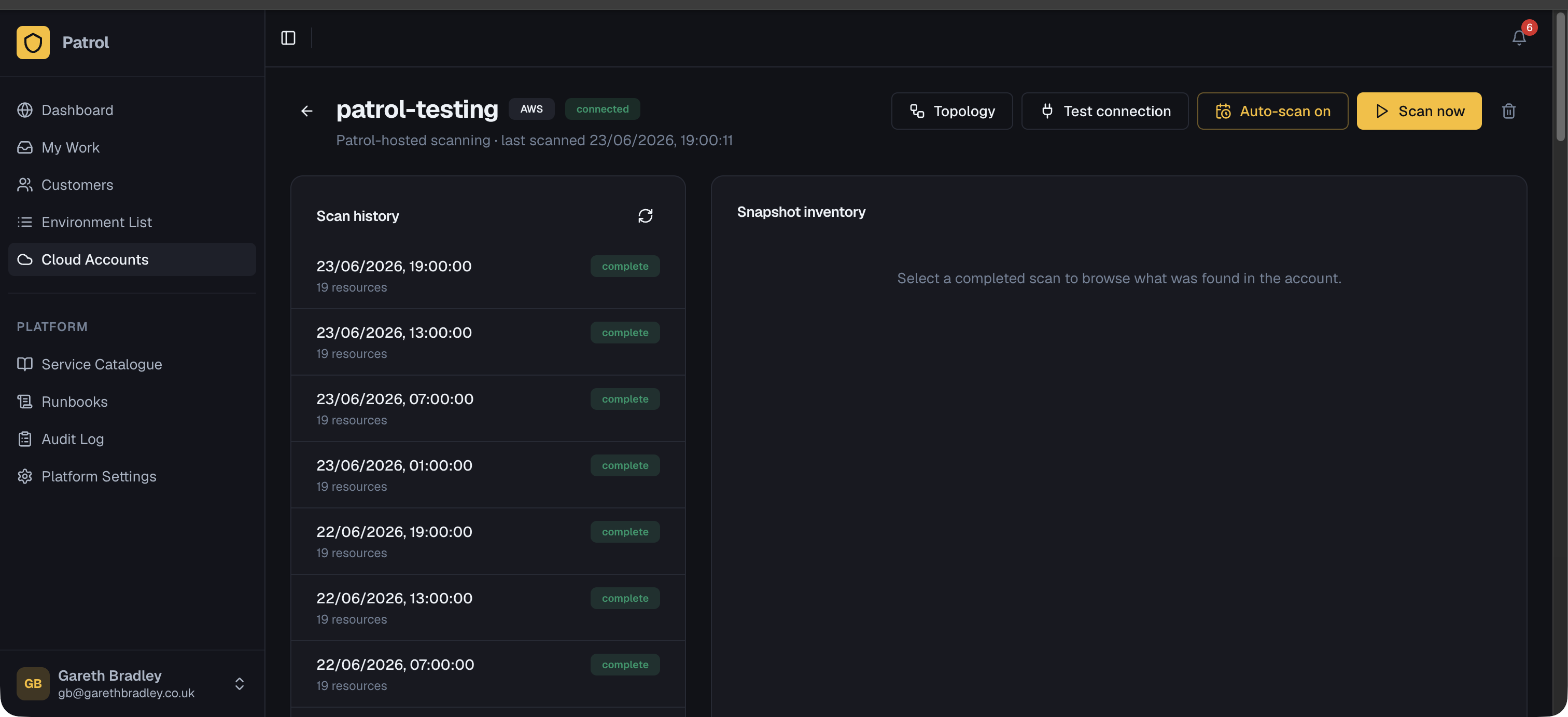
Section titled “2. Create the IAM role”On the cloud account detail page, find the “Set up cross-account access” card and click Generate setup command. This creates a one-time token (valid for 15 minutes) baked into a ready-to-run command.
Run the command on a machine with AWS credentials for the target account:
patrol connect aws --token <token>The CLI will:
- Exchange the token with Patrol to get the trust policy details — Patrol’s AWS account ID and a unique external ID for this account.
- Create (or update) an IAM role — default name
PatrolReadOnly. - Set a trust policy that allows only Patrol’s AWS account to assume the role, and only when the correct
sts:ExternalIdis provided. - Attach two AWS-managed policies:
SecurityAuditandViewOnlyAccess— sufficient for inventory scanning, with no write permissions. - Print the Role ARN and report it back to Patrol automatically.
Once complete, click Test connection on the detail page to verify.
Using a specific AWS profile
Section titled “Using a specific AWS profile”If the target account requires a named profile:
patrol connect aws --token <token> --profile <profile-name>Custom role name
Section titled “Custom role name”To use a different IAM role name (e.g. if your org has naming conventions):
patrol connect aws --token <token> --role-name MyCustomRoleNameManual setup (alternative)
Section titled “Manual setup (alternative)”The setup screen also provides two alternative tabs if you’d rather not use the CLI:
- AWS CLI script — the equivalent
aws iamcommands to run manually - Trust policy JSON — the raw policy JSON to paste into the AWS console or hand to the customer’s cloud team
3. Using access keys instead (not recommended)
Section titled “3. Using access keys instead (not recommended)”If cross-account IAM roles aren’t viable, you can authenticate with an access key pair:
- When registering the account, choose Access keys instead of cross-account IAM role.
- Store the access key ID and secret access key as secrets in Patrol.
- Reference those secrets in the cloud account’s credential fields.
Access keys are less secure than role assumption because they’re long-lived credentials. Use cross-account roles where possible.
4. Scan the account
Section titled “4. Scan the account”Once connected:
- Click Scan now for an immediate inventory scan.
- Toggle Auto-scan to scan every 6 hours automatically.
Each scan produces a snapshot visible in Scan history. See Topology to explore how resources relate to each other, and Drift Detection to set up continuous change monitoring.
Troubleshooting
Section titled “Troubleshooting”“Role does not exist or cannot be assumed” — check that the Role ARN on the detail page exactly matches what the CLI printed. ARNs are case-sensitive.
“Access denied” during scan — the SecurityAudit and ViewOnlyAccess policies cover most services, but some accounts restrict service access with SCPs (Service Control Policies). Contact the account owner to verify.
Setup token expired — tokens are valid for 15 minutes. Click Generate setup command again to get a fresh one.
Wrong account — the CLI uses whichever AWS credentials are active in your shell. Run aws sts get-caller-identity to confirm you’re operating in the right account before running patrol connect.